
Where do I manage my locations?
In the web player at app.melodial.com. Click the three dots next to your name and choose Manage organization. It has four tabs: Locations, Schedules, Business and Reporting. The app can play music at a location but cannot manage the organisation.
The admin login is for managing, not for playing all day: it previews tracks one at a time. Each location plays music on its own login.
I bought five Plus licences and I control the admin account. How do I create five new users, and how do I get certificates for those users?
Each licence becomes its own location login, created from your admin account.
How to create a new store location →
Can I try this before I buy five licences?
Yes. During a free trial, the menu shows Try multiple locations. It opens the same Manage organization page and lets you add up to five locations to see how it works.
How do I create a private playlist?
The interactive walkthrough below shows every step in the app.
What are the user permission options?
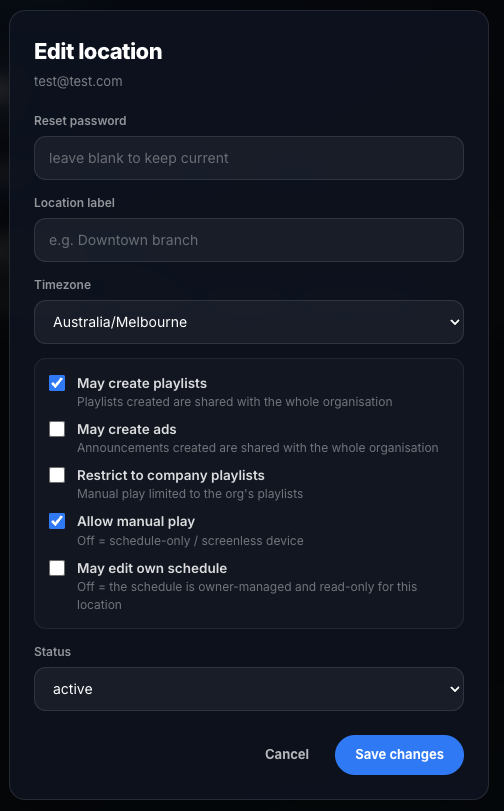
Open Manage organization, then the Locations tab, and click Edit on a location to see its permission switches, shown below.
If May create playlists is enabled, that user can create their own playlists. Playlists they create are only available to them. Playlists that the admin account creates are available to all of your users.
The same applies to May create ads. If it is enabled, that user can create their own ads. Ads they create are only available to them. Ads that the admin account creates are available to all of your users and automatically play in their streams.
Restrict to company playlists hides our catalogue from that user, so they can only play the playlists you made. Allow manual play lets the user pick what plays; switched off, the location plays only its schedule. May edit own schedule lets the user change their own schedule.
I want each of my users to have their own ad message, but I do not want staff changing the ads
The ad you created stays active, and the user cannot change any ad settings.
I restricted a user to company playlists, but they can see all company playlists. I want them limited to one playlist I prepared for that location
When that user logs in, the scheduled playlist plays automatically as scheduled. The user cannot change anything, only switch playback on or off.