
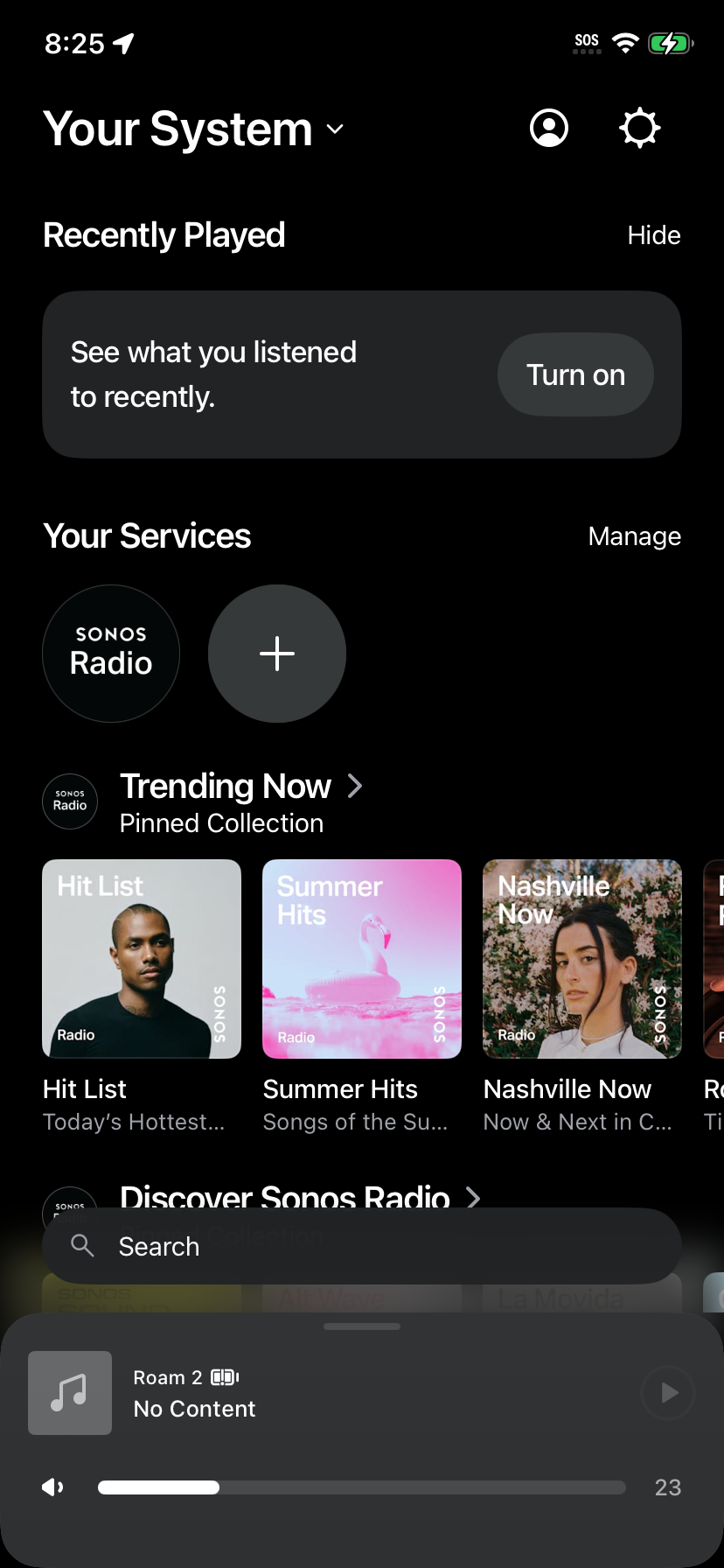
Step 1: Open your system
In the Sonos app, go to Your System. Under Your Services, tap the + icon to add a new music service.
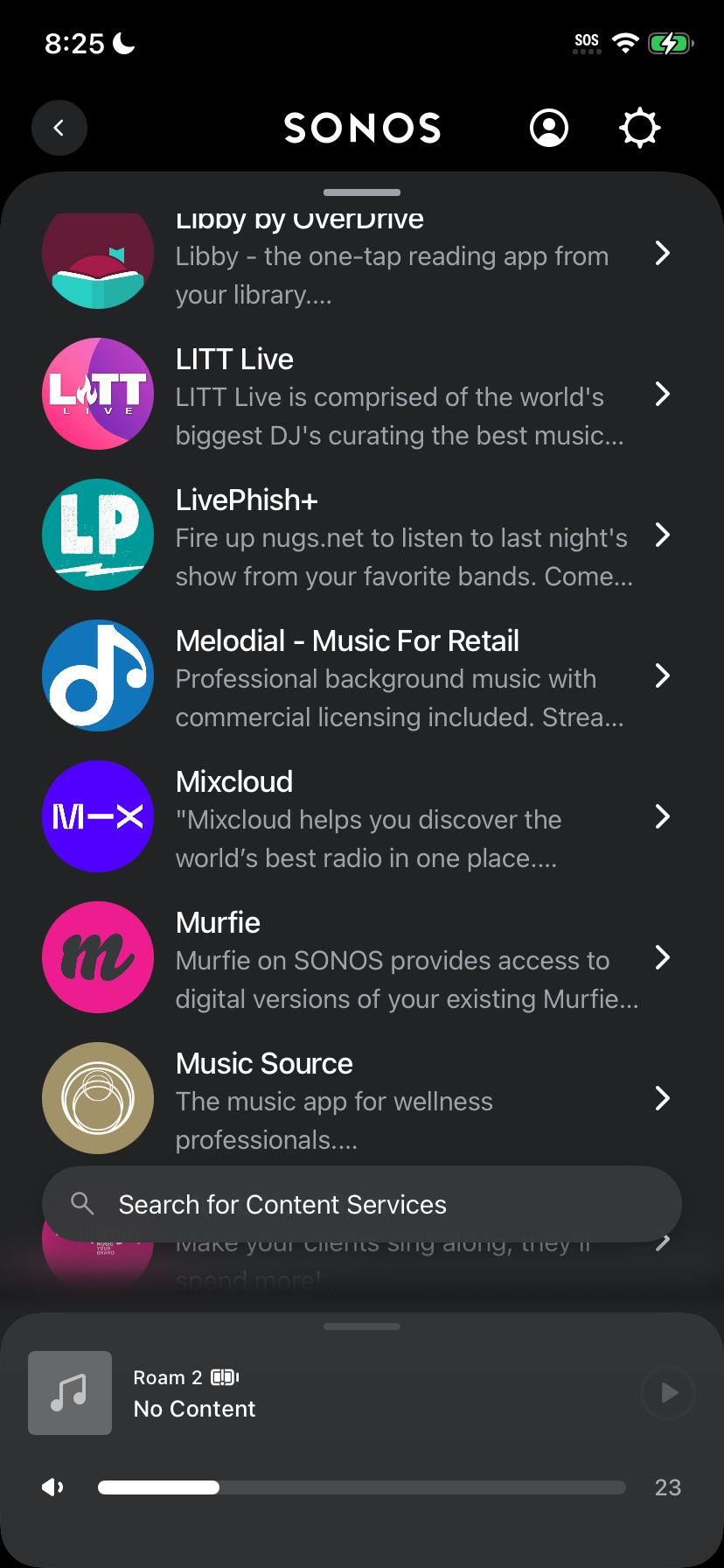
Step 2: Find Melodial
Scroll through the list of available services and select Melodial, Music For Retail.
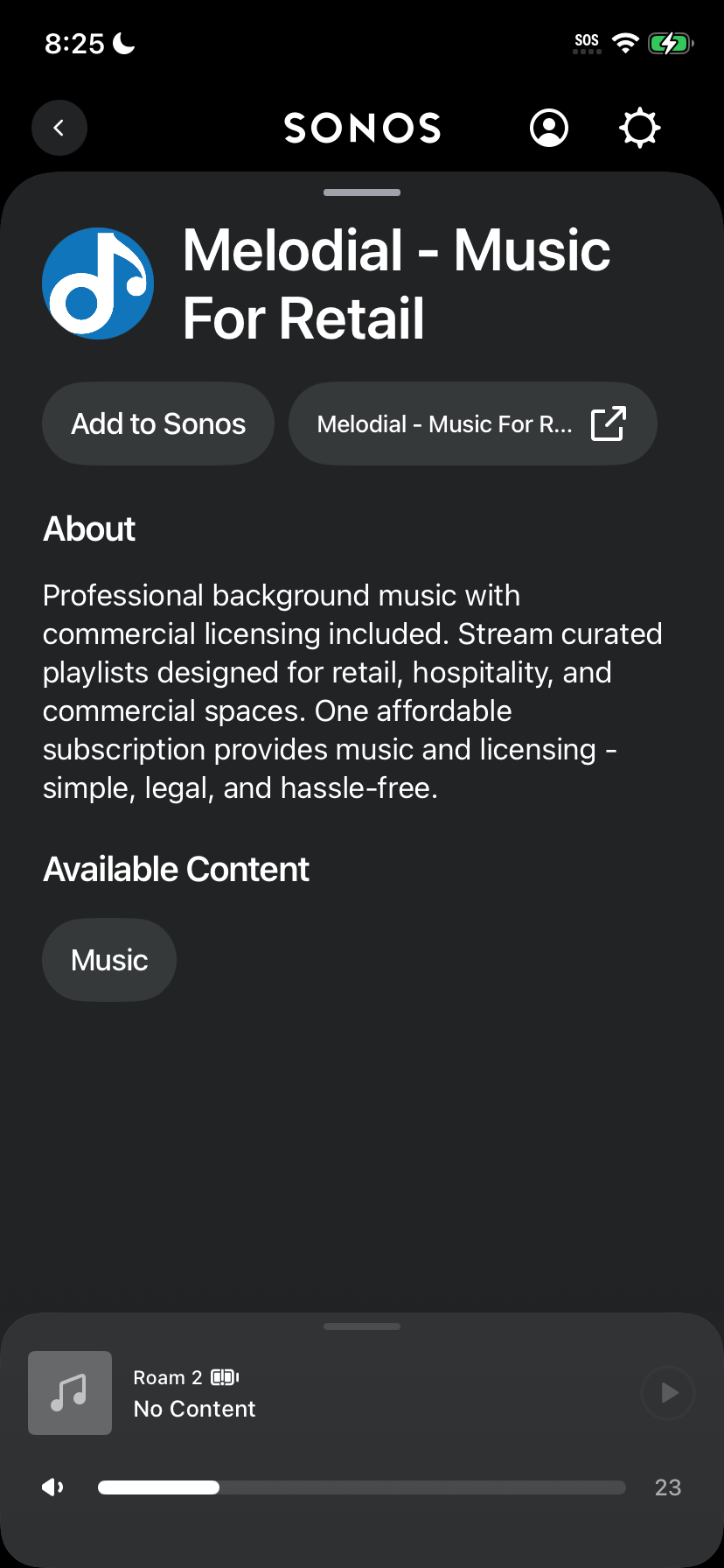
Step 3: Review the details
Review the Melodial service details, then tap Add to Sonos.
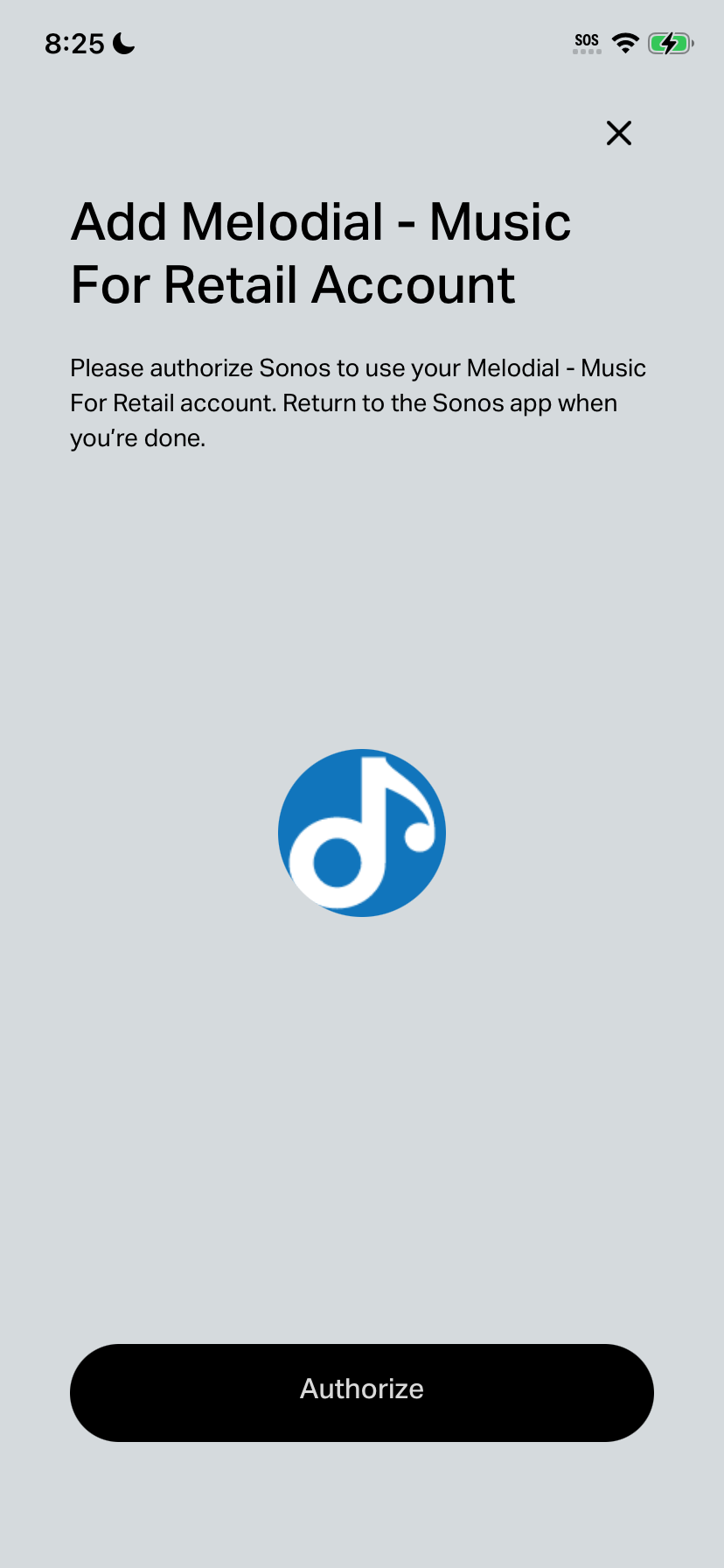
Step 4: Start authorizing
Tap Authorize to begin linking your Melodial account.
Step 5: Sign in
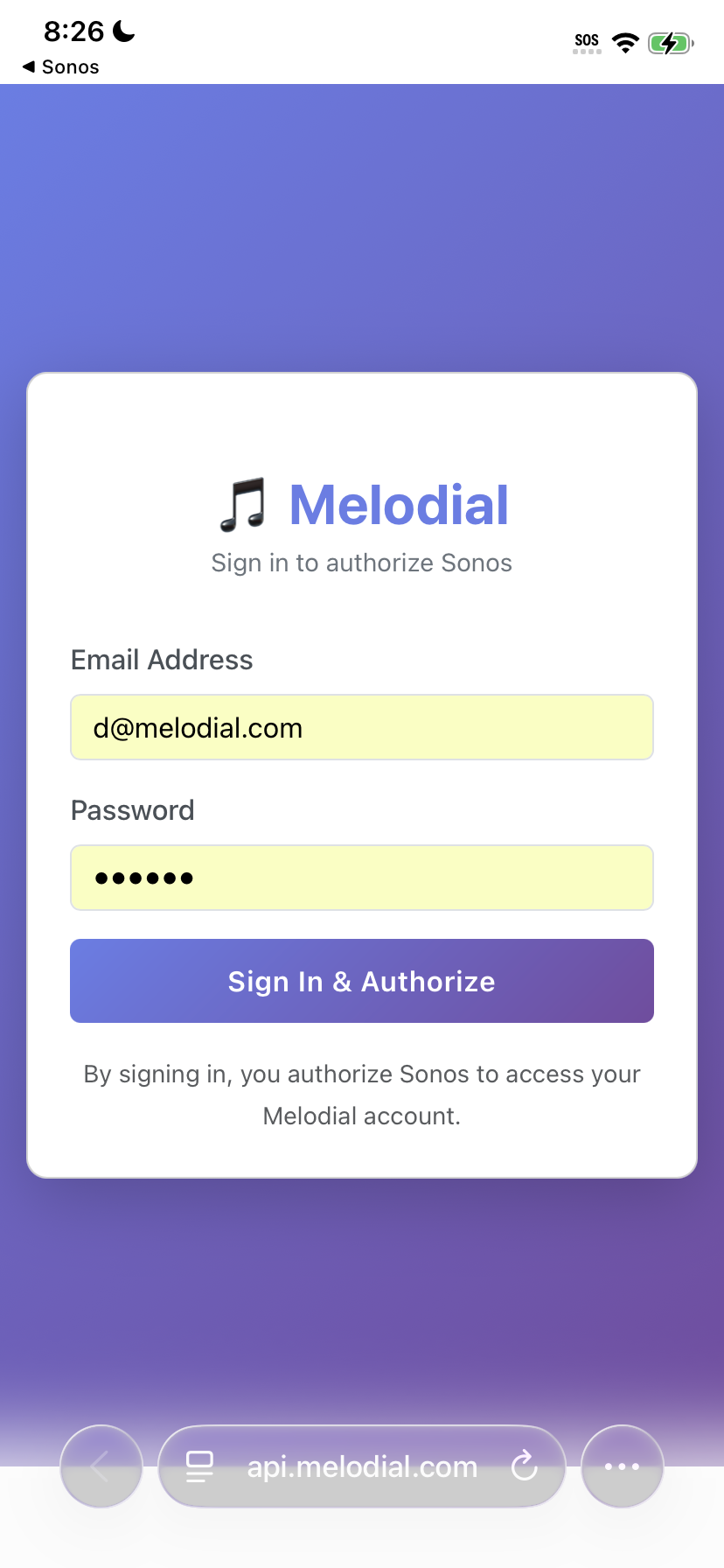
Enter your Melodial account email and password, then tap Sign In and Authorize.
Step 6: Confirm authorization
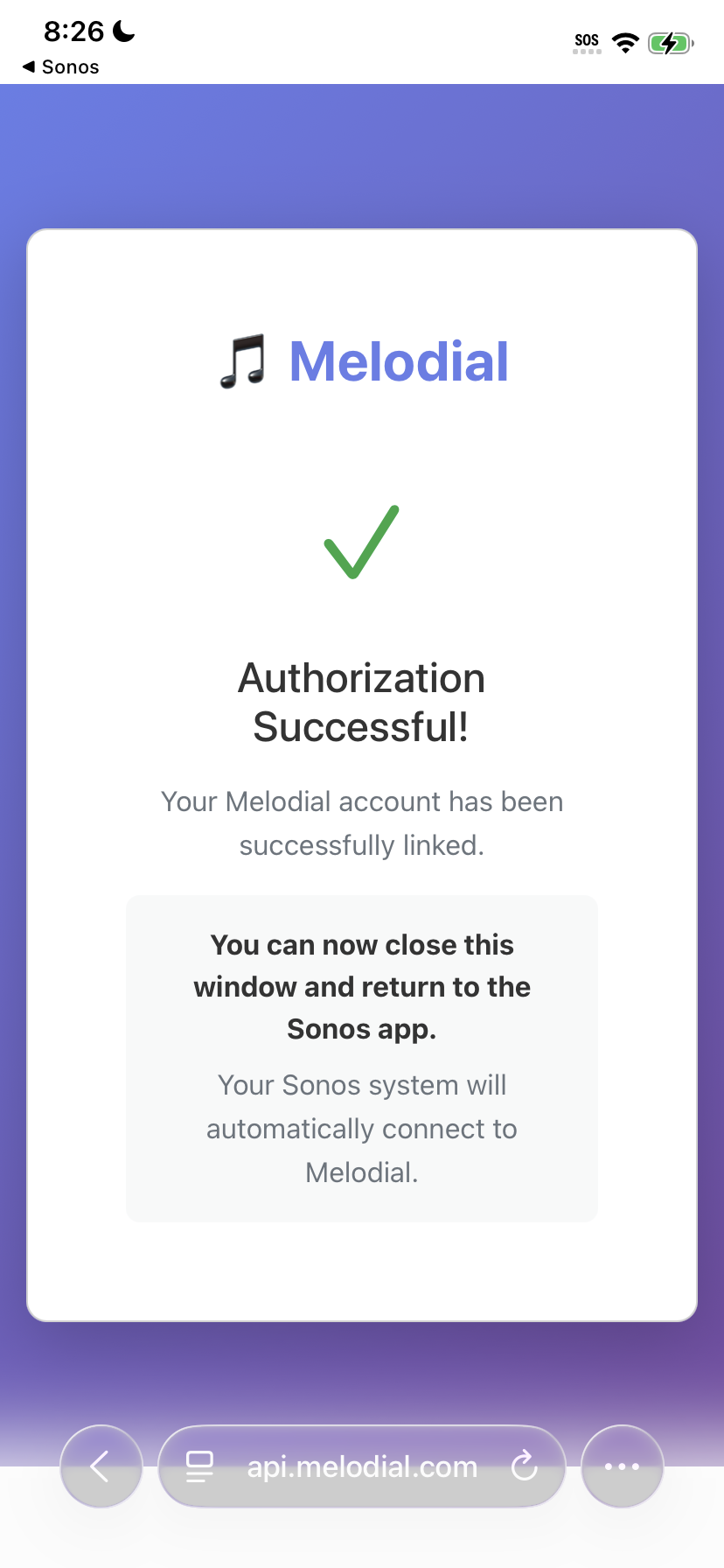
Once you see Authorization Successful, close the window and return to the Sonos app.
Step 7: Name your account
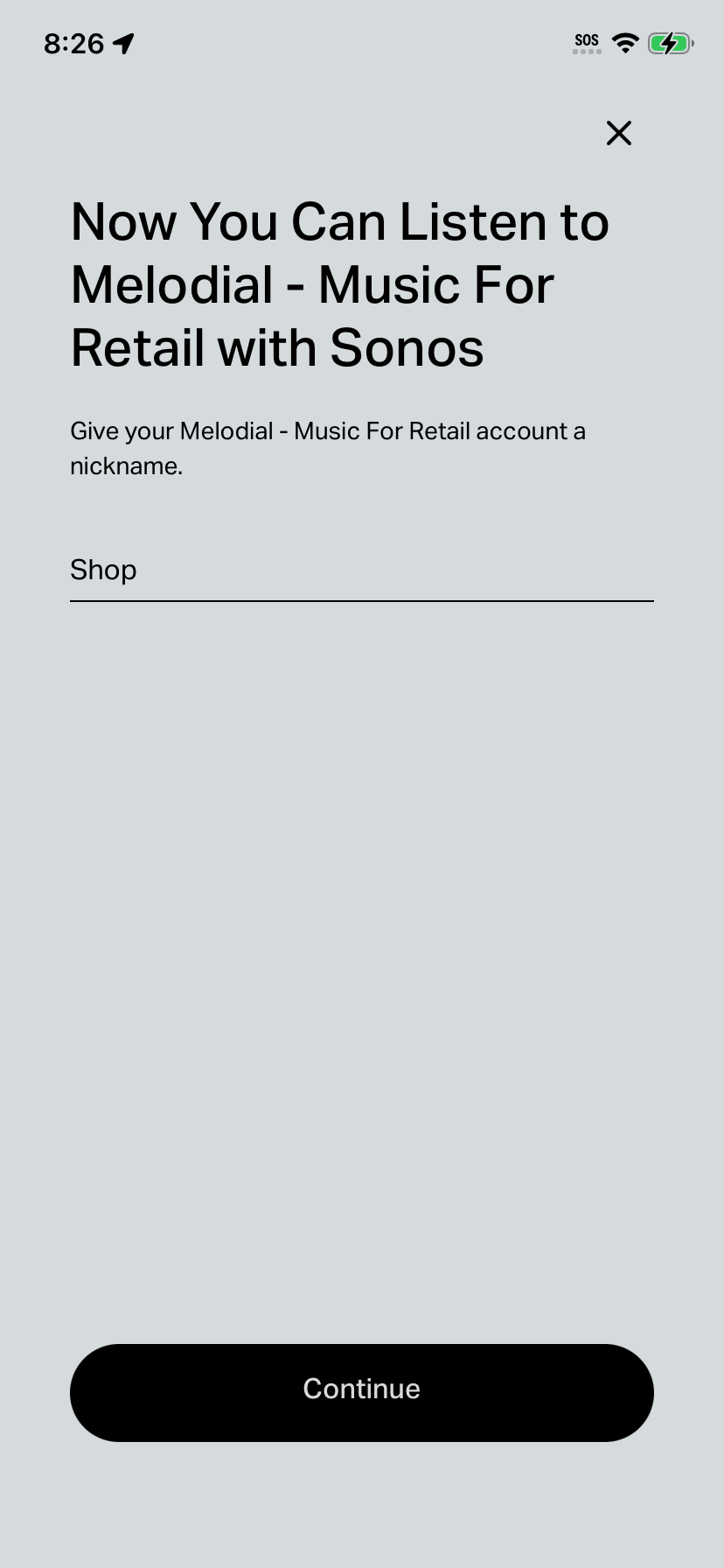
Give your Melodial account a nickname, for example Shop, then tap Continue.
Step 8: Finish setup
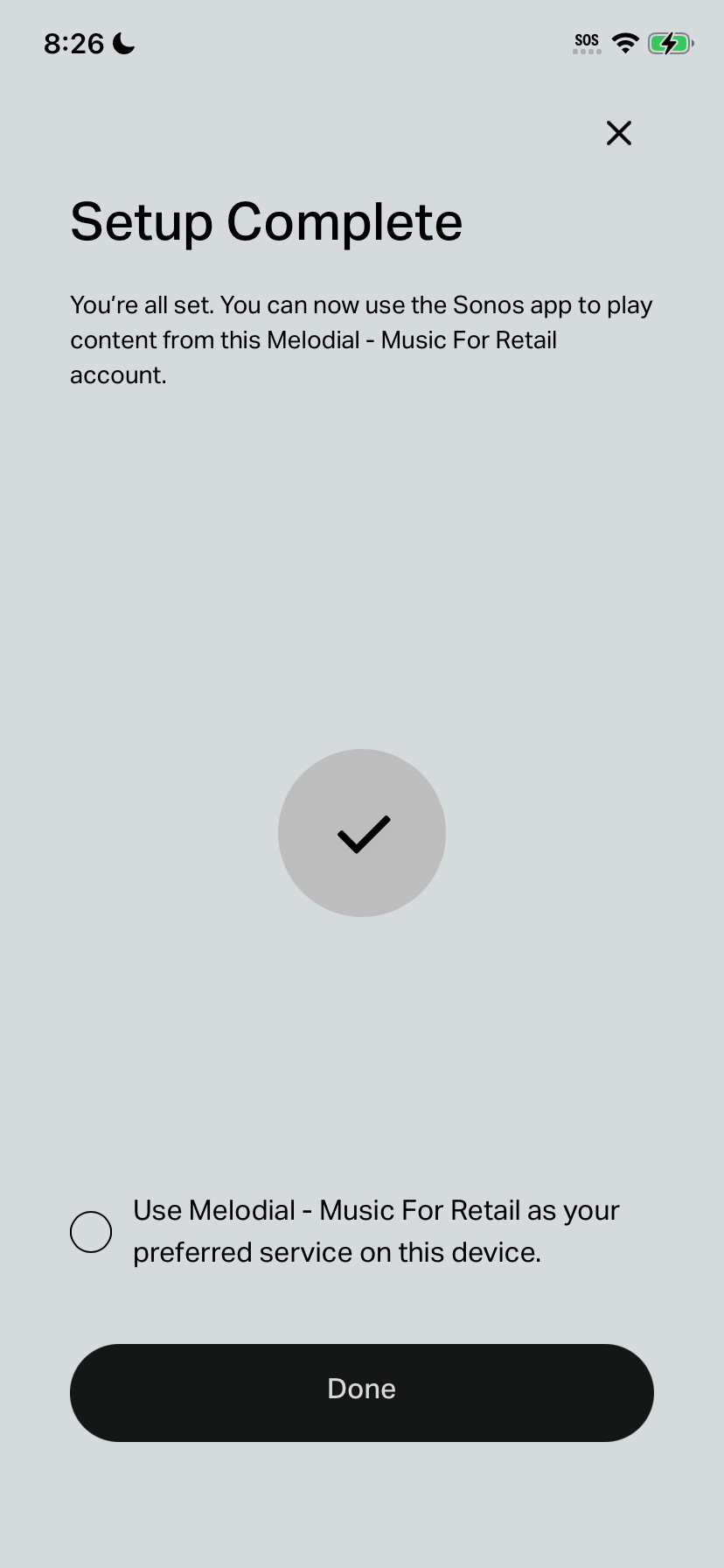
Tap Done to complete setup. You can also check the box to set Melodial as your preferred service on this device.
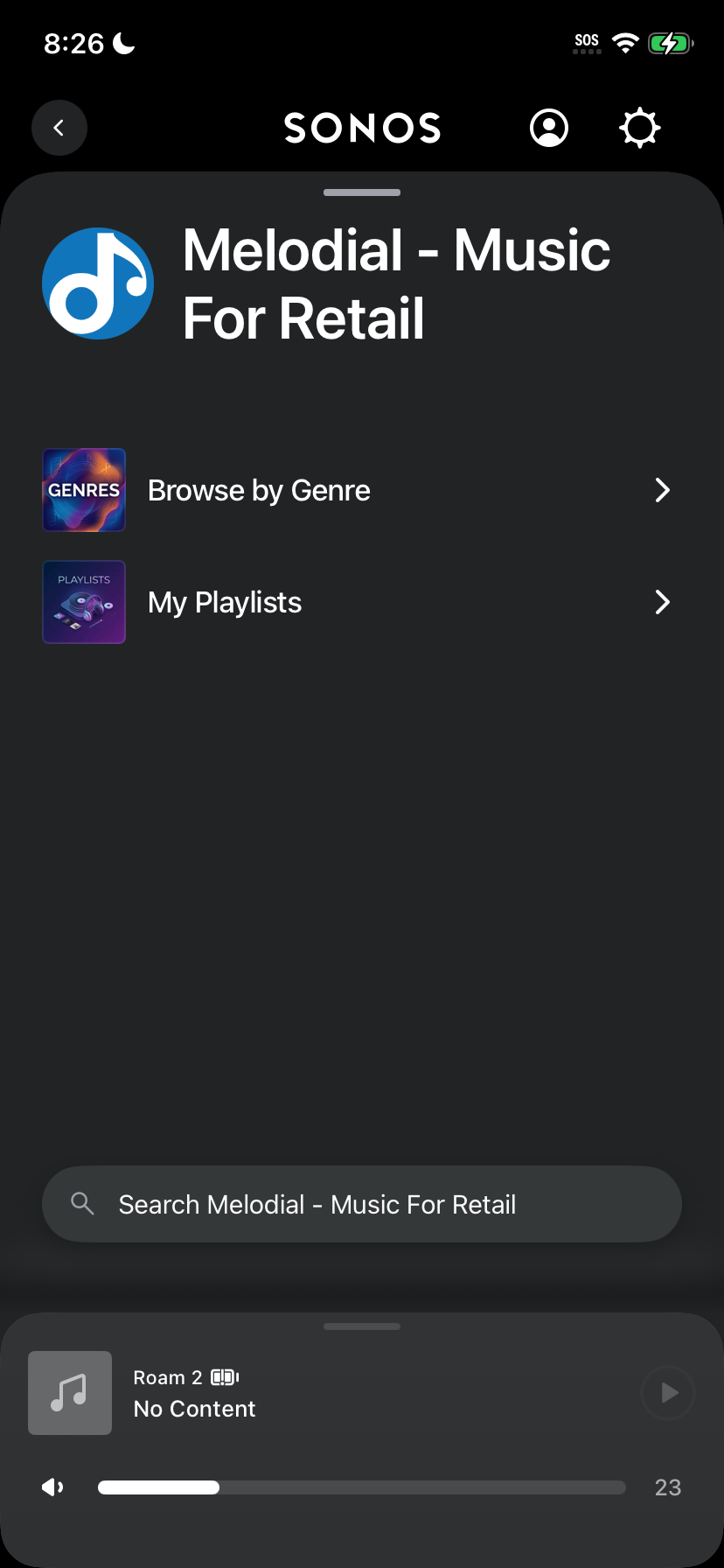
Step 9: Browse Melodial
Melodial now appears in your Sonos app, with Playlists (our playlists and your own) and Radio Stations.
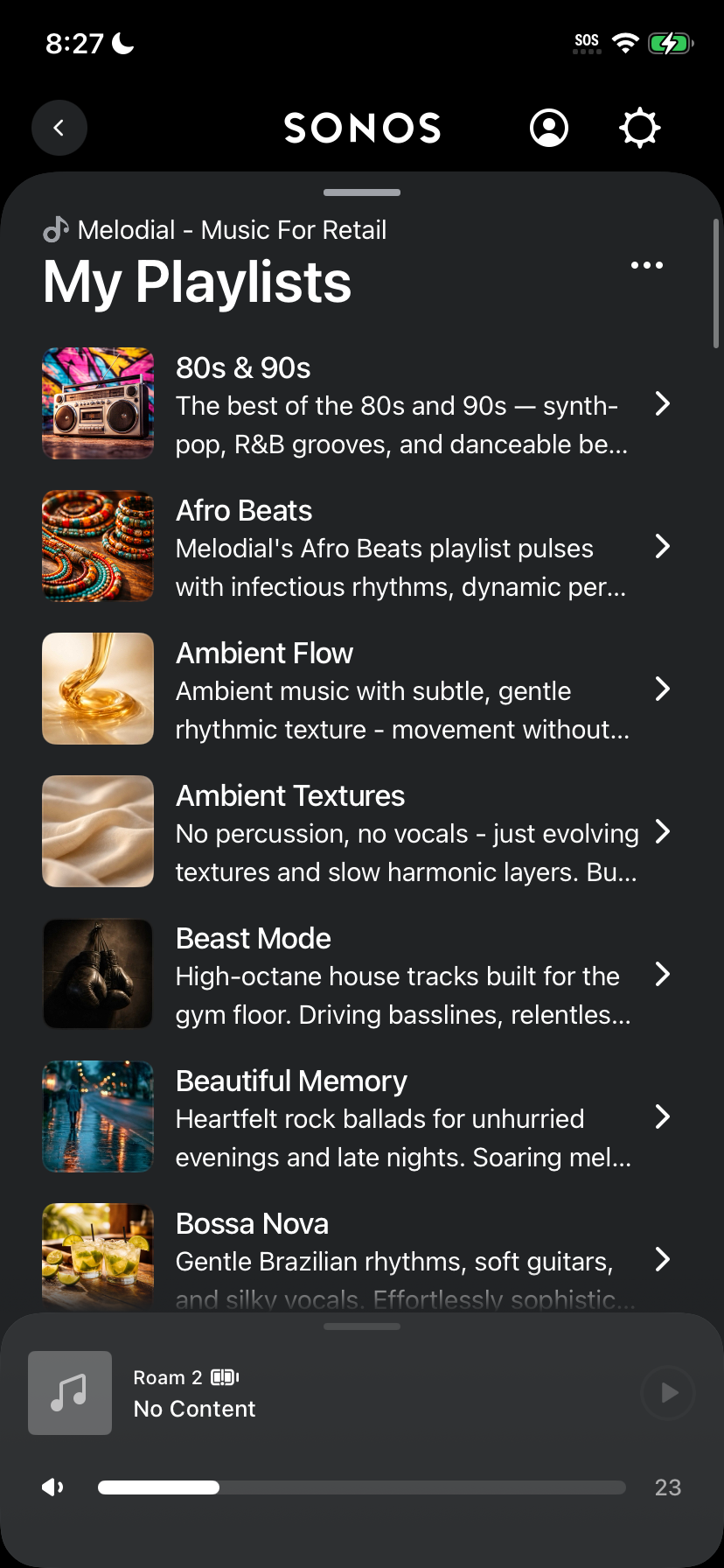
Step 10: Start listening
Select Playlists or Radio Stations to see everything available and tap one to start playing.
Voice announcements and the playback schedule run in the Melodial app and web player, not in Sonos.